
Terraform search is still very new, and it has been relatively quite about this feature since its launch.
I covered Terraform search in my deep-dive post in September, but I left out one part: what this feature looks like on HCP Terraform.

This blog post briefly looks at Terraform search from a HCP Terraform lens.
Terraform search recap#
Terraform search allows you to write queries to discover resources in your target provider environment. The goal is to generate import blocks for discovered resources and import them into your state so that you can manage them using HCP Terraform going forward.
You write queries in .tfquery.hcl files, and you can run queries locally using the terraform query command.
Queries appear as list resource blocks. An example of a list resource block that will query your AWS provider for EC2 instances that are in the stopped state looks like this:
list "aws_instance" "stopped" {
  provider = aws

  config {
    filter {
      name   = "instance-state-name"
      values = ["stopped"]
    }
  }
}
Check your favorite provider for what list resource types it supports.
Once you have defined one or more queries you can execute the query:
$ terraform query
list.aws_instance.stopped   account_id=123456789012,id=i-0086d0027a24a7681,region=eu-north-1   ubuntu (i-0086d0027a24a7681)
list.aws_instance.stopped   account_id=123456789012,id=i-09035e6c563f3e953,region=eu-north-1   sample (i-09035e6c563f3e953)
list.aws_instance.stopped   account_id=123456789012,id=i-0f829b5c0dd41eb96,region=eu-north-1   sample (i-0f829b5c0dd41eb96)
list.aws_instance.stopped   account_id=123456789012,id=i-0a3e47da606a8c9b9,region=eu-north-1   sample (i-0a3e47da606a8c9b9)
list.aws_instance.stopped   account_id=123456789012,id=i-0fabf361f1fc14ba8,region=eu-north-1   sample (i-0fabf361f1fc14ba8)
You can ask the query command to generate resource configuration and import blocks:
$ terraform query -generate-config-out=instances.tf
You end up with a file similar to the following:
# __generated__ by Terraform
# Please review these resources and move them into your main configuration files.

# __generated__ by Terraform
resource "aws_instance" "stopped_0" {
  # ... omitted ...
}

import {
  to       = aws_instance.stopped_0
  provider = aws
  identity = {
    # ... omitted ...
  }
}

resource "aws_instance" "stopped_1" {
  # ... omitted ...
}

import {
  to       = aws_instance.stopped_1
  provider = aws
  identity = {
    # ... omitted ...
  }
}

resource "aws_instance" "stopped_2" {
  # ... omitted ...
}

import {
  to       = aws_instance.stopped_2
  provider = aws
  identity = {
    # ... omitted ...
  }
}

resource "aws_instance" "stopped_3" {
  # ... omitted ...
}

import {
  to       = aws_instance.stopped_3
  provider = aws
  identity = {
    # ... omitted ...
  }
}

resource "aws_instance" "stopped_4" {
    # ... omitted ...
}

import {
  to       = aws_instance.stopped_4
  provider = aws
  identity = {
    # ... omitted ...
  }
}
Terraform search on HCP Terraform#
With a HCP Terraform workspace in place for your Terraform configuration you can run the queries defined in your .tfquery.hcl files directly in the HCP Terraform UI or using the CLI.
To use the CLI, add a cloud block to your terraform block:
terraform {
  required_providers {
    aws = {
      source  = "hashicorp/aws"
      version = "~> 6.0"
    }
  }

  cloud {
    organization = "mattias-fjellstrom"

    workspaces {
      name = "terraform-search-hcp"
    }
  }
}
Now when you run terraform query the query will execute on HCP Terraform1:
$ terraform query
Running query in HCP Terraform. Output will stream here. Pressing Ctrl-C
will stop streaming the logs, but will not stop the query running remotely.

Preparing the remote query run...

To view this query run in a browser, visit:
https://app.terraform.io/app/mattias-fjellstrom/terraform-search-hcp/search/qry-TsRcijLs8HccoAEf

Waiting for the query run to start...

Terraform v1.14.0
on linux_amd64
Initializing plugins and modules...
list.aws_instance.stopped   account_id=123456789012,id=i-0086d0027a24a7681,region=eu-north-1   ubuntu (i-0086d0027a24a7681)
list.aws_instance.stopped   account_id=123456789012,id=i-09035e6c563f3e953,region=eu-north-1   sample (i-09035e6c563f3e953)
list.aws_instance.stopped   account_id=123456789012,id=i-0f829b5c0dd41eb96,region=eu-north-1   sample (i-0f829b5c0dd41eb96)
list.aws_instance.stopped   account_id=123456789012,id=i-0a3e47da606a8c9b9,region=eu-north-1   sample (i-0a3e47da606a8c9b9)
list.aws_instance.stopped   account_id=123456789012,id=i-0fabf361f1fc14ba8,region=eu-north-1   sample (i-0fabf361f1fc14ba8)
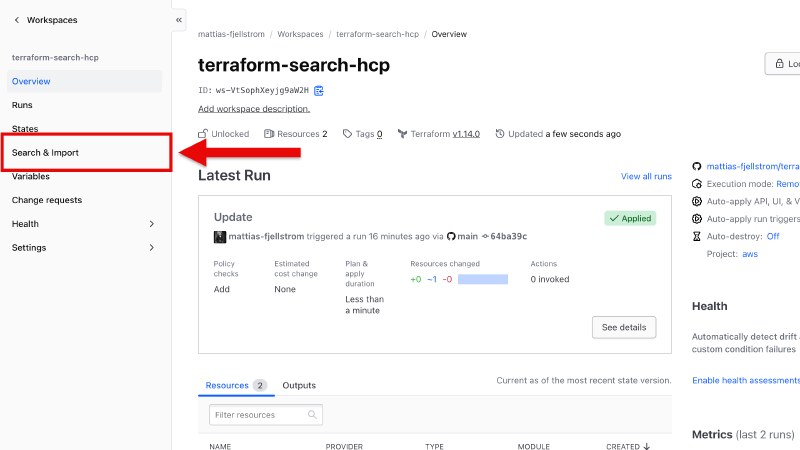
You can also see the query from the HCP Terraform workspace. From the main workspace overview page, click on Search & Import in the menu on the left:
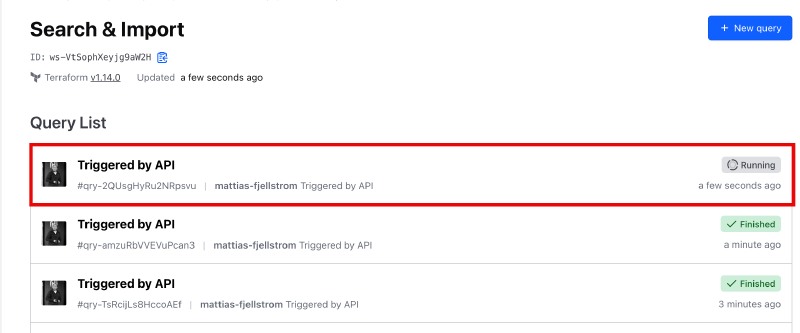
Here you see a list of all the search and import runs in this workspace:
Click on one of the runs to see the results:
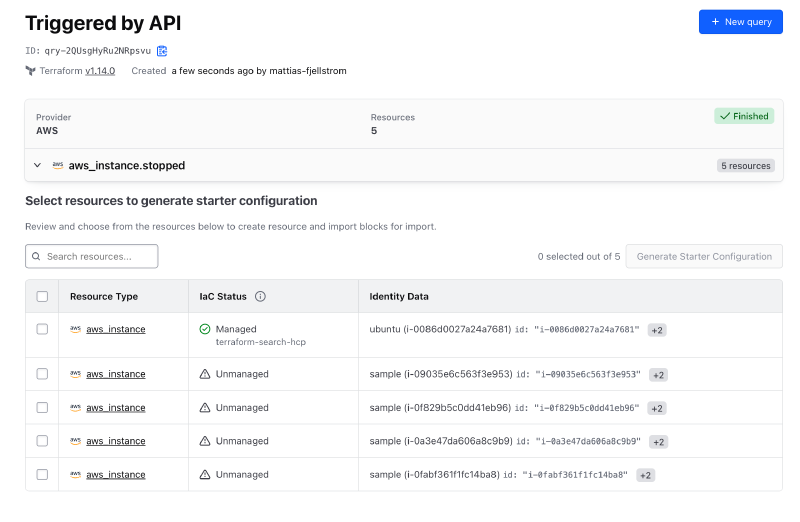
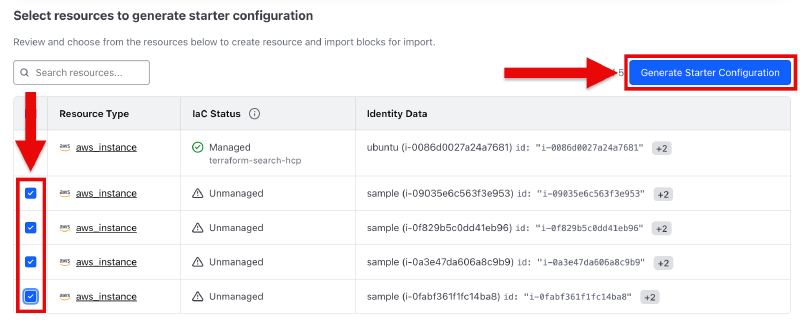
Here you can see a richer output than what you got with the CLI in the terminal. The interesting detail is the IaC Status column. HCP Terraform can tell you whether the discovered resources are managed or not, and it lists what workspace the managed resources exists in if it does.
If you want to generate import configuration for unmanaged resources (or managed resources in case you want to move them to this workspace) select them in the list of discovered resources and click on Generate Started Configuration:
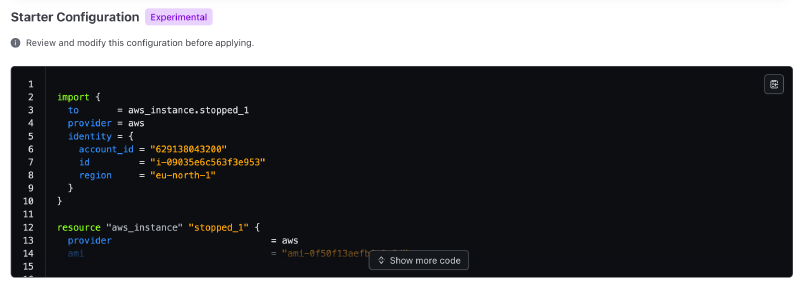
Once you click the button you get the configuration that you can copy to your repository:
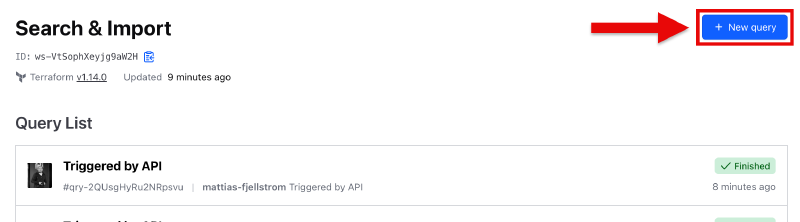
I mentioned that you can also start a search and import run from the user interface. To do that, click on the + New query button from the Search & Import overview page:
Conclusions#
Terraform search helps you discover resources through queries. This could be resources that are not yet managed by Terraform that you want to start managing using Terraform going forward. However, it could also be that you want to migrate a number of resources from one state file to another.
Before the Terraform search functionality becomes really useful our favorite providers must implement the list resource types for most of their resources. Check the documentation for your provider to see what list resource types it already supports.
The search and import functionality works equally good using the Terraform CLI as using HCP Terraform. The benefit with HCP Terraform is that you do not need to give your developers (or yourself) direct access to your provider environment (e.g. AWS). Instead you can rely on the implicit trust between HCP Terraform and your target provider using workload identity federation. You also get additional information, HCP Terraform can see if any of the discovered resources are already managed in your HCP Terraform organization.
You might ask yourself why you would execute the query on HCP Terraform instead of only running it locally? One reason is that you do not need credentials to your AWS environment stored locally if you run the query from HCP Terraform. ↩︎